Hydra CCC for Chrome
Keep every customer call in context
CCC Companion adds customer search, confirmed click-to-dial, reviewed CRM capture and safe call-driven screen pops to your existing Hydra CCC workflow.
Requires an active, authorised Hydra CCC account and Google Chrome 116 or later.
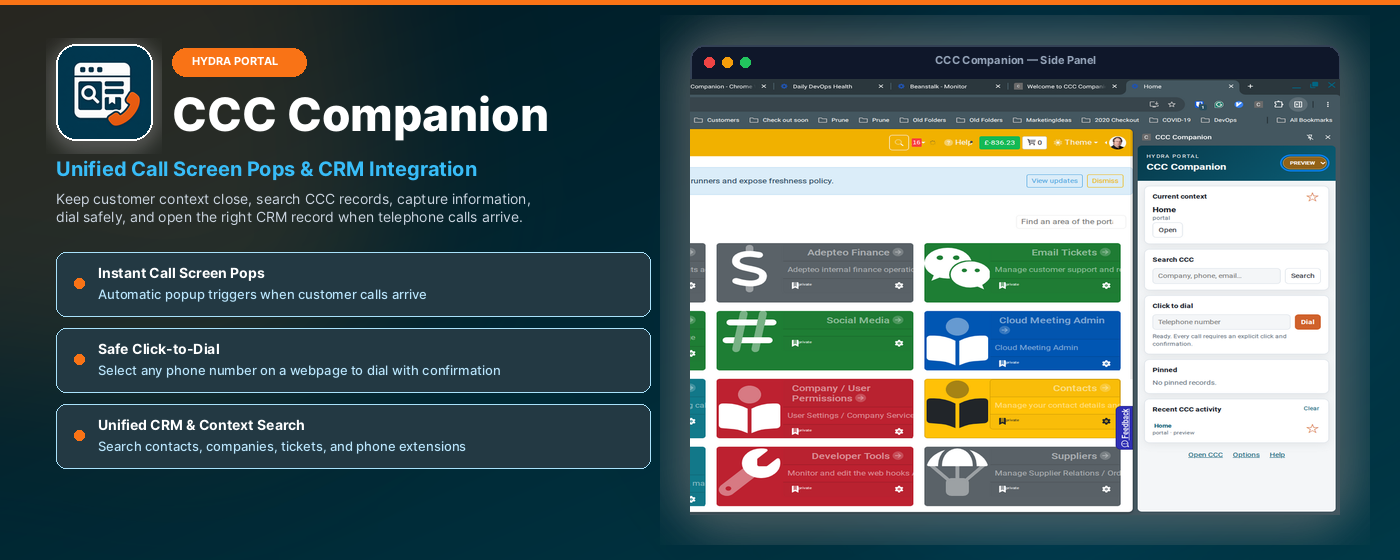
One focused workspace
Find, call and follow up without losing your place
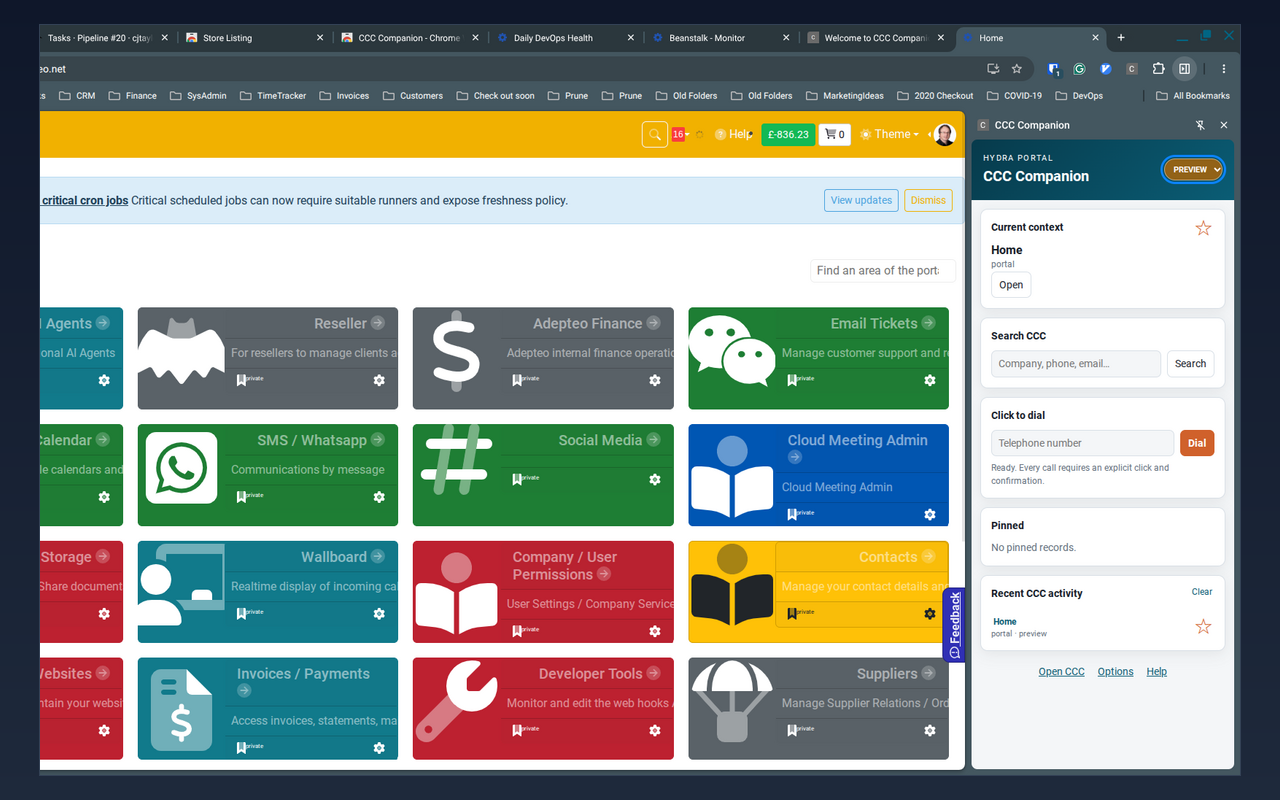
The side panel stays beside the portal so customer context remains available while you work.
Search CCC
Find companies, contacts, telephone numbers, email addresses and tickets from the side panel.
Click to dial safely
Select a number on a webpage, then review and confirm it before CCC starts the call.
Open the right CRM record
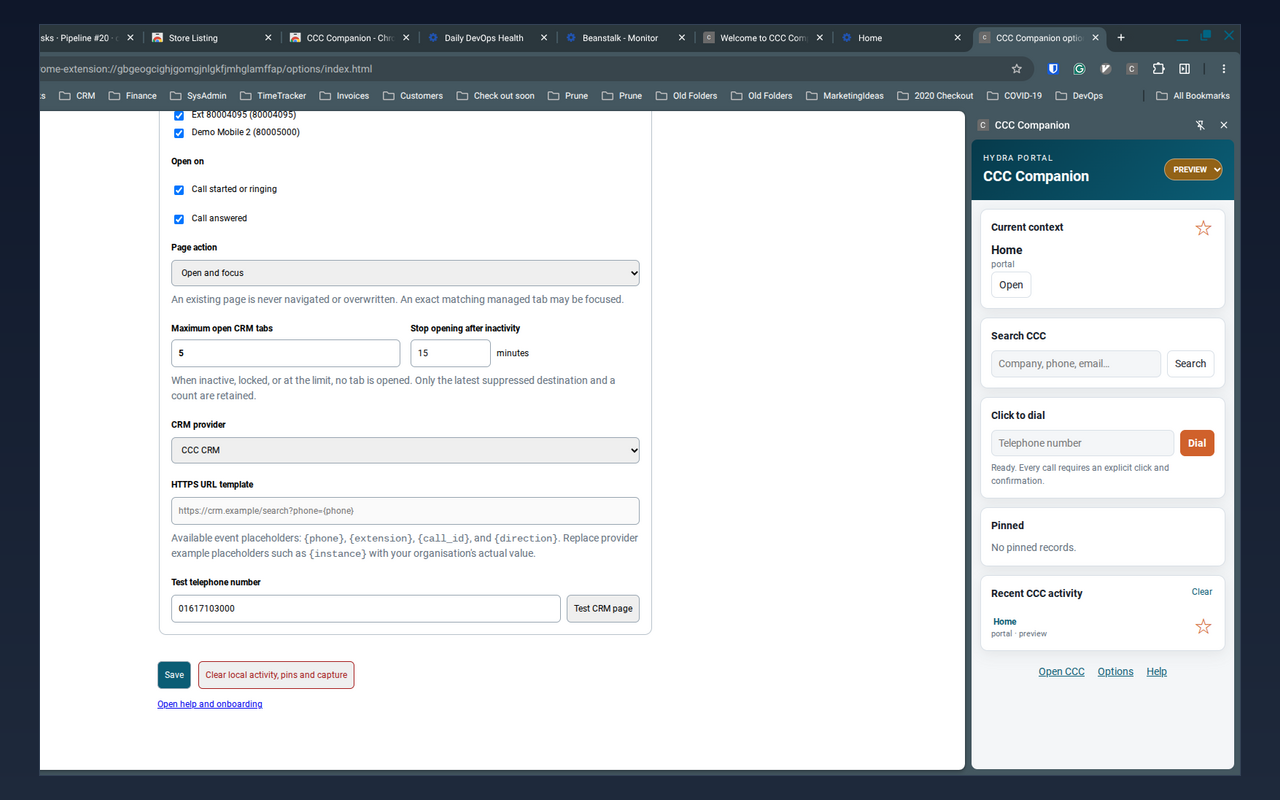
Use call events to open Hydra CCC or a configured third-party CRM when calls ring, start or are answered.
Capture with control
Review selected webpage text before copying it or saving it to the relevant CCC record.
Built around your CCC session
A clear start, a persistent side panel and flexible screen pops
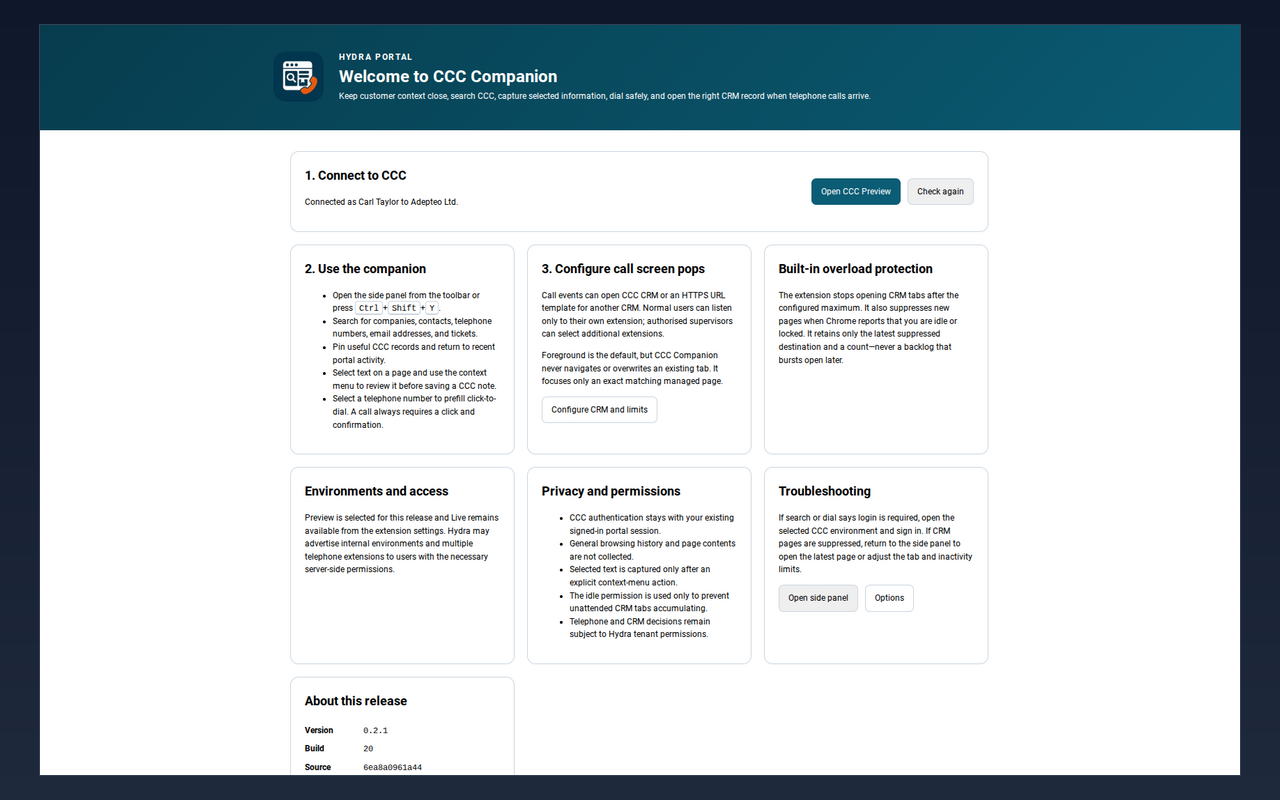
Designed not to interrupt
Screen pops that respect the work already open
CCC Companion never navigates or overwrites an existing page. You can open a CRM page in the background, bring it to the foreground, or disable automatic opening.
Configurable tab limits and inactivity checks prevent a burst of calls from leaving hundreds of pages behind. The extension retains only the latest suppressed destination and a count, not a replay backlog.
Privacy and permission boundaries
- CCC authentication stays in the existing signed-in portal session.
- Calls always require an explicit click and confirmation.
- Selected text is captured only after a context-menu action.
- Normal users listen only to their own telephone extension.
- Telephone and CRM actions remain subject to Hydra tenant permissions.
Help and support
Already using CCC Companion?
Open the extension's Help page for onboarding, connection checks, screen-pop guidance and its exact release/build number.
If search or dial reports that sign-in is required, open your selected CCC environment and sign in. If screen pops are suppressed, open the side panel to review the latest destination or adjust the tab and inactivity limits.